ServicesAll ServicesSocial Media ManagementPaid AdvertisingWebsites & Online StoresSEOBranding & DesignBusiness Growth Automation
Blog Contact
Englishالعربية
Our WorkAll Our WorkBranding & LogosSocial MediaPrint DesignAd Campaign ResultsWebsitesOnline Stores
AboutAll AboutClient TestimonialsAbout Us
Home Explore services

Day: Last Updated: July 21, 2026

  • Complete WordPress Dashboard Guide: How to Manage Your Site Like a Pro

    Complete WordPress Dashboard Guide: How to Manage Your Site Like a Pro

    Complete WordPress Dashboard Guide in 2026: Professional Site Management

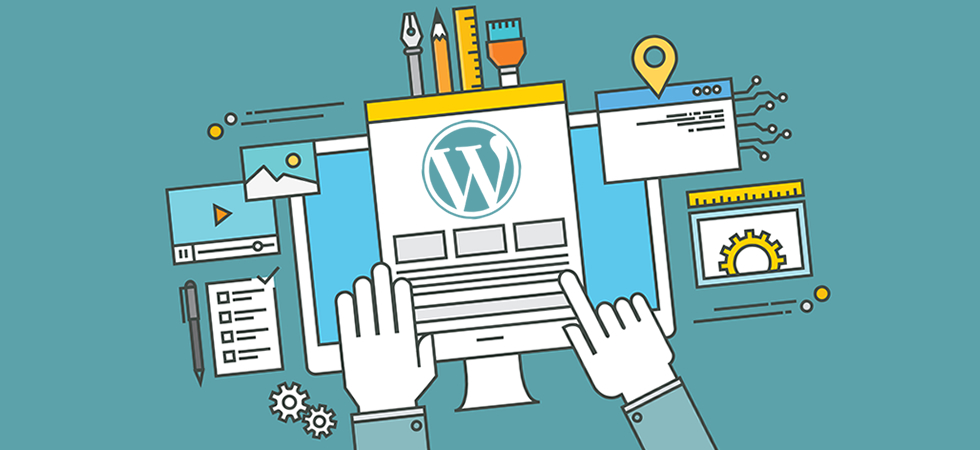
    WordPress is the leading content management system (CMS), powering over 43% of all websites on the internet in 2026. The WordPress dashboard continues its fast-paced evolution with generative AI integration, Gutenberg block editing, and top-tier performance and security management tools. This guide covers all core dashboard components to help you manage your site easily and professionally.

    Essential WordPress Dashboard Sections and Key Functions

    The admin dashboard features a comprehensive sidebar offering quick access to all site controls:

    • Dashboard Home: Provides an overview of site health, recent updates, security alerts, maintenance status, and visitor analytics.
    • Posts: The dedicated section for creating and editing articles, managing categories and tags, and optimizing on-page content SEO.
    • Media Library: Central hub for managing images, audio, and video files, supporting modern compressed formats like WebP and AVIF for fast page loading.
    • Pages: Designed for static, foundational pages such as About Us, Contact Us, Privacy Policy, and custom Landing Pages.
    • Comments: Manages reader interactions and automated spam filtering to protect your site’s reputation.

    Advanced Sections in the WordPress Dashboard

    Key advanced sections that allow deep customization and feature expansion include:

    • Appearance: Encompasses theme selection and activation, Full Site Editing (FSE), navigation menus, and widgets.
    • Plugins: Extends site functionality through SEO extensions, security suites, e-commerce tools (WooCommerce), and AI assistants.
    • Users: Manages team member roles and permissions (Administrator, Editor, Author, Contributor, Subscriber).
    • Tools: Includes data import/export, Site Health checks, and personal data privacy management.
    • Settings: Configures general site settings, permalink structures, reading preferences, and discussion options.

    Step-by-Step Guide to Uploading and Installing a New Theme

    To update your site’s look and install a custom theme instead of the default layout, follow these steps:

    • From the dashboard sidebar, navigate to Appearance and select Themes.
    • Click the Add New button at the top of the page.
    • If you have a compressed theme file (.zip), click Upload Theme and select the file from your computer.
    • Click Install Now, then click Activate to enable your new theme immediately.

    Top Tips to Secure and Speed Up Your WordPress Site in 2026

    To deliver an optimal user experience and boost search engine rankings, adopt these best practices:

    • Maintain continuous updates for WordPress core, themes, and plugins to patch security vulnerabilities.
    • Utilize caching plugins such as WP Rocket or LiteSpeed Cache.
    • Enable a Content Delivery Network (CDN) and SSL certificate for fast, encrypted data transmission.
    • Schedule regular cloud backups to protect your site data against unexpected loss.
  • Ultimate WordPress Dashboard Guide (Updated 2026)

    Ultimate WordPress Dashboard Guide (Updated 2026)

    WordPress Dashboard Explained: The Complete Updated Guide for 2026

    WordPress remains the world’s leading Content Management System (CMS), powering over 43% of all websites globally. The WordPress Dashboard offers an intuitive, interactive interface giving site owners and marketers full control over posts, pages, design, and plugins in one place.

    Key Menu Components in the WordPress Dashboard

    1. Dashboard / Home

    Displays a quick snapshot of your site performance, including content stats, recent comments, Site Health status, and WordPress updates & news.

    2. Posts

    Dedicated to publishing and managing blog articles. Divided into:

    • All Posts: View and edit published posts or drafts.
    • Add New Post: Opens the Gutenberg Block Editor to write and format articles easily.
    • Categories and Tags: Organize content for easy navigation and improved SEO performance.

    3. Media

    The library for images, videos, and documents. Allows uploading high-resolution media with automated image size optimization features.

    4. Pages

    Used to create static website pages (e.g., About Us, Contact Us, Privacy Policy, Terms & Conditions, and Home Page).

    5. Comments

    Manage visitor comments with options to approve, reply, mark as spam, or trash.

    6. Appearance & Full Site Editing (FSE)

    Control overall site design. In 2026, WordPress supports Full Site Editing (FSE), allowing you to customize headers, footers, and templates visually using interactive block components without writing code.

    7. Plugins

    The feature store for your website. Install plugins for security, speed optimization, SEO tools (like Yoast or Rank Math), and e-commerce capabilities (like WooCommerce).

    8. Users

    Manage team members and carefully assign roles to safeguard site security:

    • Administrator: Has full access to settings, plugins, themes, and content.
    • Editor: Can edit, publish, and delete all posts and pages.
    • Author: Can write, edit, and publish their own posts only.
    • Contributor: Can write posts but cannot publish them directly.
    • Subscriber: Can manage their personal user profile.

    9. Tools & Settings

    Configure core site settings including site title, timezone format, reading/discussion options, and Permalinks management crucial for SEO.

    How to Install and Activate a New Theme in WordPress

    1. From the sidebar menu, select Appearance then click Themes.
    2. Click the Add New Theme button.
    3. Search for your desired theme in the free directory, or click Upload Theme to select a zip file (.zip) from your computer.
    4. Click Install then Activate.

    Conclusion

    The 2026 WordPress Dashboard stands out for its flexibility and ease of use, enabling anyone to build and manage top-tier websites without complex technical coding knowledge.

  • How to Build a Professional Portfolio That Attracts Clients in 2026

    How to Build a Professional Portfolio That Attracts Clients in 2026

    How to Build a Professional Portfolio That Attracts Clients & Companies in 2026

    In the competitive job market of 2026, a traditional resume (CV) is no longer sufficient to prove your competence and skills. A Professional Portfolio serves as your primary identity card and tangible proof of your ability to solve problems and deliver measurable results—whether you are a designer, developer, writer, or digital marketer.

    What is the Difference Between a Resume (CV) and a Portfolio?

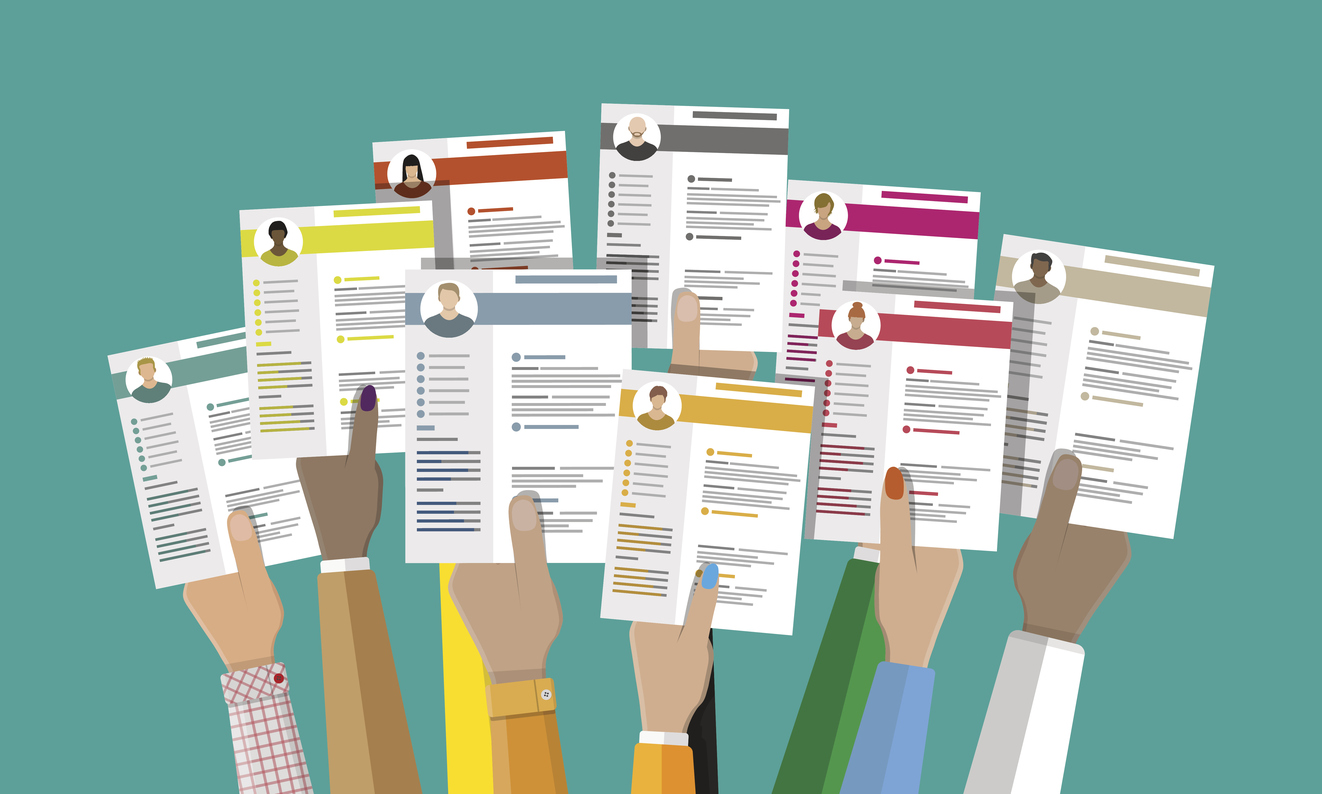
    • Resume (CV): Text documentation of educational qualifications, written work experiences, and past employers.
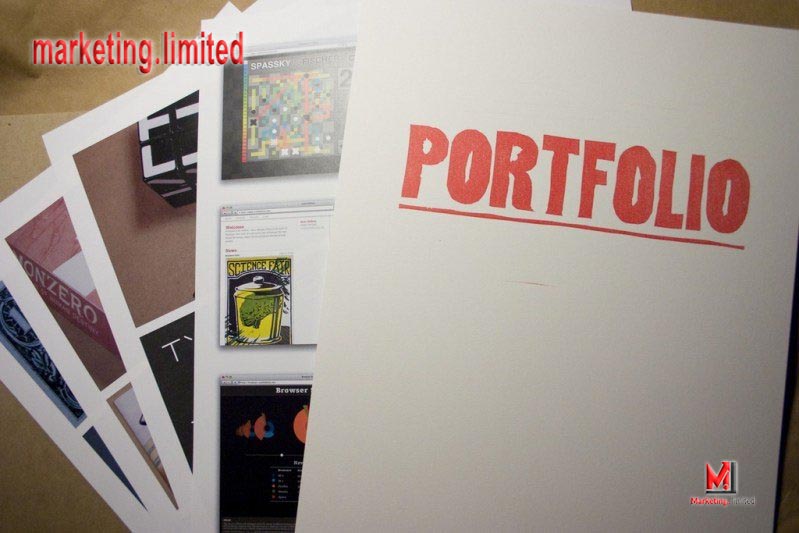
    • Portfolio: A visual and interactive showcase of real work samples from past projects, demonstrating your workflow, critical thinking, and tangible outcomes.

    Golden Steps to Build an Attractive & Professional Portfolio

    1. Choose Quality Over Quantity

    One of the most common mistakes is including every single project you’ve worked on since day one. Select only your best 5 to 8 projects that demonstrate your highest skill levels and the specialization you wish to pursue in the future.

    2. Tell the Story of Each Project (Case Study Approach)

    Do not settle for publishing final images or links alone; write a concise case study covering:

    • The Problem: The challenge or pain point the client faced.
    • The Solution: Tools, frameworks, and strategy applied to resolve it.
    • Data-Driven Results: Revenue growth, site speed improvements, or engagement boosts achieved by your work.

    3. Select the Right Digital Platform for Your Field

    In 2026, digital platforms make building an interactive personal site effortless without complex coding:

    • For Designers & Visual Content Creators: Behance, Dribbble, or custom sites on Framer / Webflow.
    • For Developers & Engineers: GitHub, Hashnode, or a custom web portfolio.
    • For Marketers & Content Writers: Notion, Medium, or a dedicated WordPress site bringing together articles and case studies.

    4. Optimize UX & Mobile Responsiveness

    Ensure your portfolio loads ultra-fast and is fully optimized for mobile devices, as over 70% of recruiters and clients browse portfolios from smartphones.

    5. Include Client Testimonials & Social Proof

    Adding real reviews and recommendations from previous clients or managers grants your portfolio high credibility and encourages new clients to reach out with confidence.

    Top Tips to Ensure Lasting Portfolio Success

    1. Continuous Updates: Refresh your portfolio every 3 to 6 months to feature your latest work and retire older projects.

    2. Clear Call to Action (CTA): Place visible contact buttons (such as link to contact form, WhatsApp, or email) at the top and bottom of your site.

    3. Showcase Passion & Personal Projects: If you don’t have enough client projects initially, create mock projects that showcase your skills clearly.

  • How to Build an Attention-Grabbing Professional Portfolio in 2026

    How to Build an Attention-Grabbing Professional Portfolio in 2026

    Steps to Build a High-Impact Professional Portfolio for 2026

    In today’s highly competitive market across freelancing, digital marketing, software development, and design, a personal portfolio serves as your true calling card and main engine for attracting dream clients and job opportunities. A portfolio is no longer just a static PDF—it has evolved into an interactive platform showcasing your real impact and results.

    Essential Rules for an Irresistible Portfolio

    1. Focus on Quality Over Quantity

    Curate your top 4 to 6 best projects that demonstrate your highest skill levels rather than listing every past project. Clients and hiring managers evaluate you based on the standard of your weakest showcase piece.

    2. Present Projects in Case Study Format

    Don’t just post images or links to final products. Use a compelling case study structure that includes:

    • The Challenge / Problem: What pain point did the client face?
    • Strategy & Skills: How did you analyze the problem and what tools/techniques did you use?
    • Solution & Execution: The steps, creative choices, and designs implemented.
    • Results & Numbers: Measurable metrics such as percentage sales increase, performance boost, or traffic growth.

    3. Choose the Right Platform & Own Your Domain

    While public platforms (like Behance for designers or GitHub for developers) are useful, owning a custom personal domain website builds greater trust and project professionalism in 2026.

    4. Highlight Modern Skills & AI Workflows

    Showcase your tech-forward approach in 2026 by highlighting your mastery of modern productivity, interactive design, and AI workflow tools.

    5. Include Social Proof & Client Testimonials

    Adding genuine client reviews, testimonials, and verified certifications instantly elevates your credibility and encourages prospect conversion.

    6. Include a Clear Call-to-Action (CTA)

    Make contacting you effortless; feature a clean contact form, calendar booking link, and direct WhatsApp or email links in prominent locations.

    Conclusion

    A professional portfolio is your single best career investment for 2026. Keep it updated, mobile-responsive, and packed with concrete, data-backed results to win over clients.